
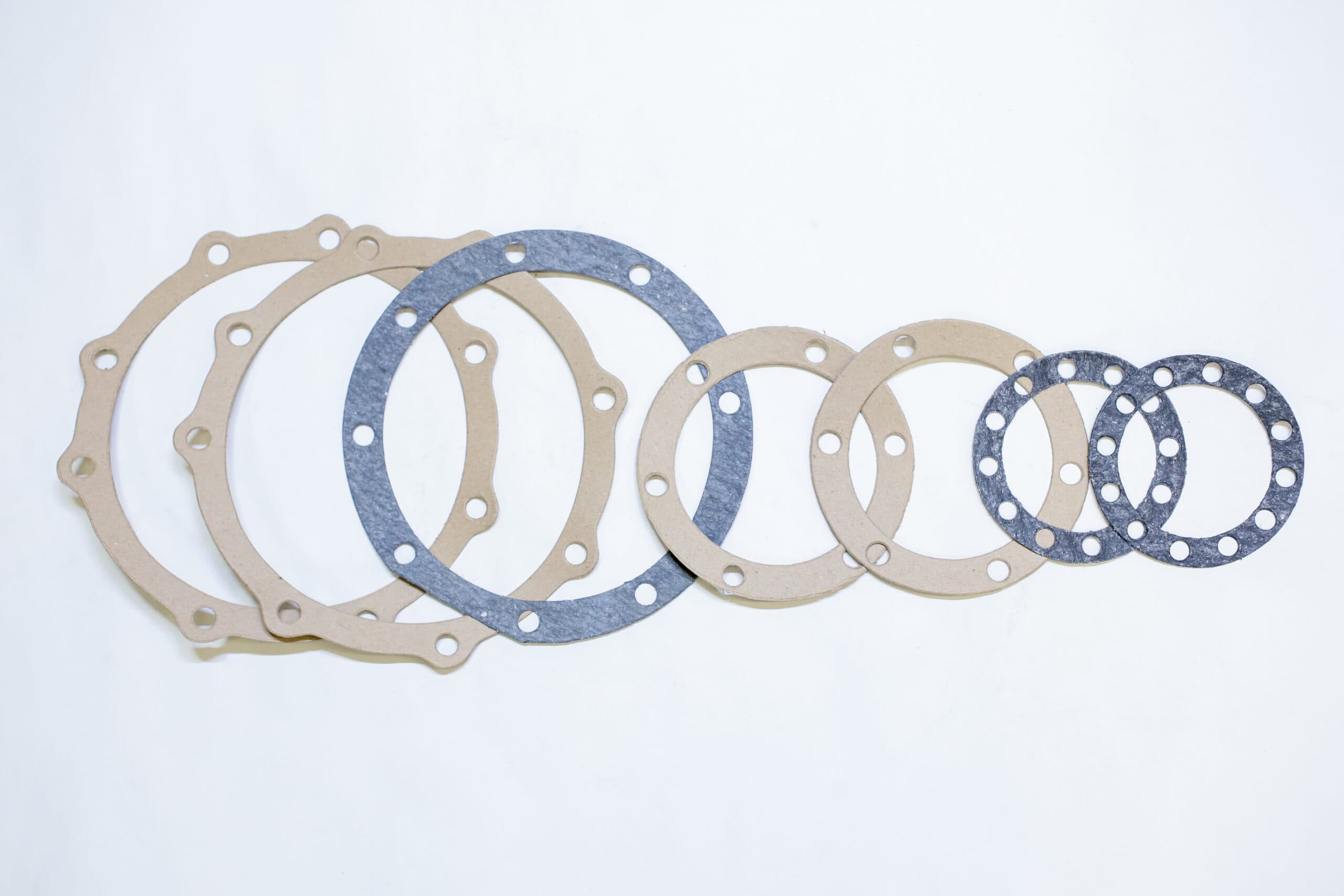
Tools
Gasket and Shim Drawing Tool.
Draw a gasket, washer or shim in a few minutes: pick a shape, type its dimensions and place the holes. Download an A4 PDF drawing and a DXF for cutting, or send both to us with a quote request.
- Shapes to start from
- 7
- A drawing and a cutting file
- PDF and DXF
Drawing tool
Draw your part.
Choose the shape that is closest, or draw your own outline. Drag the holes where you want them, and the checks tell you anything a cutter would query.
- Overall
- 100 × 100 mm
- Area
- 50.3 cm²
- Cut length
- 502.65 mm
- Holes
- 0
Drag a hole to move it. Double-click the drawing to add a hole. The arrow keys nudge what is selected (Shift for ten times as far).
Ring or washer
A round gasket or washer: outside and bore diameters.
Your holes (0)
Add holes anywhere: double-click the drawing, or use Add a hole. Positions are from the centre of the part.
The part
Checks
Nothing a cutter would query. Ready to download or send.
The PDF is an A4 drawing to scale with every dimension; the DXF holds just the cutting lines, in millimetres. Your drawing stays on this device until you send it.
The drawing helps us quote quickly. We check every dimension with you before anything is cut.
How to use it
Four steps to a drawing.
- 01
Pick a shape
A ring or washer, a flange gasket with bolt holes, a rectangle, a frame, a slotted shim, an obround, or your own outline with as many corners as it needs.
- 02
Type the dimensions
In millimetres or inches, with a point or a comma. The drawing and its dimensions update as you type, and the arrow keys step a value up or down.
- 03
Place the holes
Double-click the drawing to add a hole, drag it into place, or type its position from the centre. Holes snap to the grid; switch snapping off for finer moves.
- 04
Download or send
Download the PDF drawing and the DXF, or send both to us: the quote form opens with your drawing attached and the part's details filled in.
What you get
A drawing to scale, and a file to cut from.
The PDF is an engineering drawing on A4: the part to a standard scale with its dimensions, a table of any holes you added, notes and a title block with the material, thickness and quantity. The DXF holds only the cutting lines, as true arcs and circles in millimetres, ready for a cutting table.
Your drawing stays on your device until you send it, and it is still there when you come back.
Laser and water jet cuttingFiles and checks
| Item | What it is | Use it for |
|---|---|---|
| PDF drawing | A4 landscape, to a standard scale (such as 1:1 or 1:2), with every dimension | Printing, approval and your records |
| DXF | AutoCAD R12, millimetres: the outside on layer OUTLINE, every opening on layer HOLES | Cutting, or opening in your own CAD |
| SVG | The drawing as a scalable image, in millimetres | Documents and presentations |
| Checks | Holes off the part, across an edge or overlapping; thin webs; outlines that cross themselves | Fixing a drawing before it is sent |
- PDF drawing
- A4 landscape, to a standard scale (such as 1:1 or 1:2), with every dimension
- Use it for: Printing, approval and your records
- DXF
- AutoCAD R12, millimetres: the outside on layer OUTLINE, every opening on layer HOLES
- Use it for: Cutting, or opening in your own CAD
- SVG
- The drawing as a scalable image, in millimetres
- Use it for: Documents and presentations
- Checks
- Holes off the part, across an edge or overlapping; thin webs; outlines that cross themselves
- Use it for: Fixing a drawing before it is sent
We check every dimension with you before anything is cut.
Related
Choose the material, then the cutting method.
- Find a material
Tool
Material finder
Our materials ranked for your part.
- Die cutting
Cutting
Die cutting
Fast, repeatable parts in volume.
- Laser and water jet
Cutting
Laser and water jet cutting
No tooling: ideal for prototypes and complex shapes.
- Custom gaskets
Made to order
Custom gaskets
Cut to your drawing in-house.
- Custom shims
Made to order
Custom shims
Shims and insulators to your drawing.
Common questions
The drawing tool, answered.
Is my drawing kept private?
Your drawing stays in your browser, on your device, until you choose to send it. Files sent with a quote request are stored privately and only our team can open them.
Which file should I send?
Send both: the PDF shows the part with its dimensions and details, and the DXF is what we cut from. Send for a quote attaches both for you.
Can I send my own CAD file instead?
Yes. The quote form takes PDF, DXF, DWG, STEP, IGES, PNG and JPG files, up to 20 MB each and up to three files.
What do the checks look for?
Holes that are off the part, cross an edge or overlap, and outlines that cross themselves, which must be fixed before the drawing is sent. Thin webs of material between a hole and an edge, or between two holes, are flagged for you to judge: we suggest at least the material's thickness, and never under 1 mm.
Can you make shapes the tool cannot draw?
Yes. Draw the nearest shape and describe the rest in the notes, or send us a sketch, a photo with measurements or a sample, and we will draw it with you.
Can I work in inches?
Yes. Switch the units to inches and every dimension, and the PDF drawing, follows. The DXF is always in millimetres, as cutting tables expect.
Not sure which material?
The material finder ranks our materials for your part, and our technical team will confirm the grade with your quotation.


